
Currently Empty: ₹0.00

Advance And Trending Topics, Blog, Career and Salary Focused, Industry specific and business, Learning And Course Related
AI-Powered Excel with Copilot: The Complete Course Guide
April 16, 2026

AI-Powered Excel with Copilot: The Complete Course Guide
Everything you need to know about Microsoft Copilot in Excel — from your very first prompt to building fully automated dashboards, writing advanced formulas with AI, and turning your Excel with Copilot skills into career-defining results in 2026.
The way the world works in Excel changed permanently the day Microsoft Copilot arrived inside the spreadsheet. For decades, Excel was the most powerful productivity tool on the planet — and also one of the most intimidating. Steep formula syntax, manual data cleaning, complex pivot configurations, and hours lost to formatting. AI-powered Excel with Copilot eliminates every one of those friction points, replacing them with conversational prompts that get the job done in seconds.
This guide is a complete breakdown of the AI-Powered Excel with Copilot course — its modules, skills, projects, and career outcomes. Whether you are completely new to Excel with Copilot or an experienced analyst looking to supercharge your workflow, this article covers everything you need to know to make an informed decision about learning this skill in 2026.
Section 1
Foundation
What Is AI-Powered Excel with Microsoft Copilot?
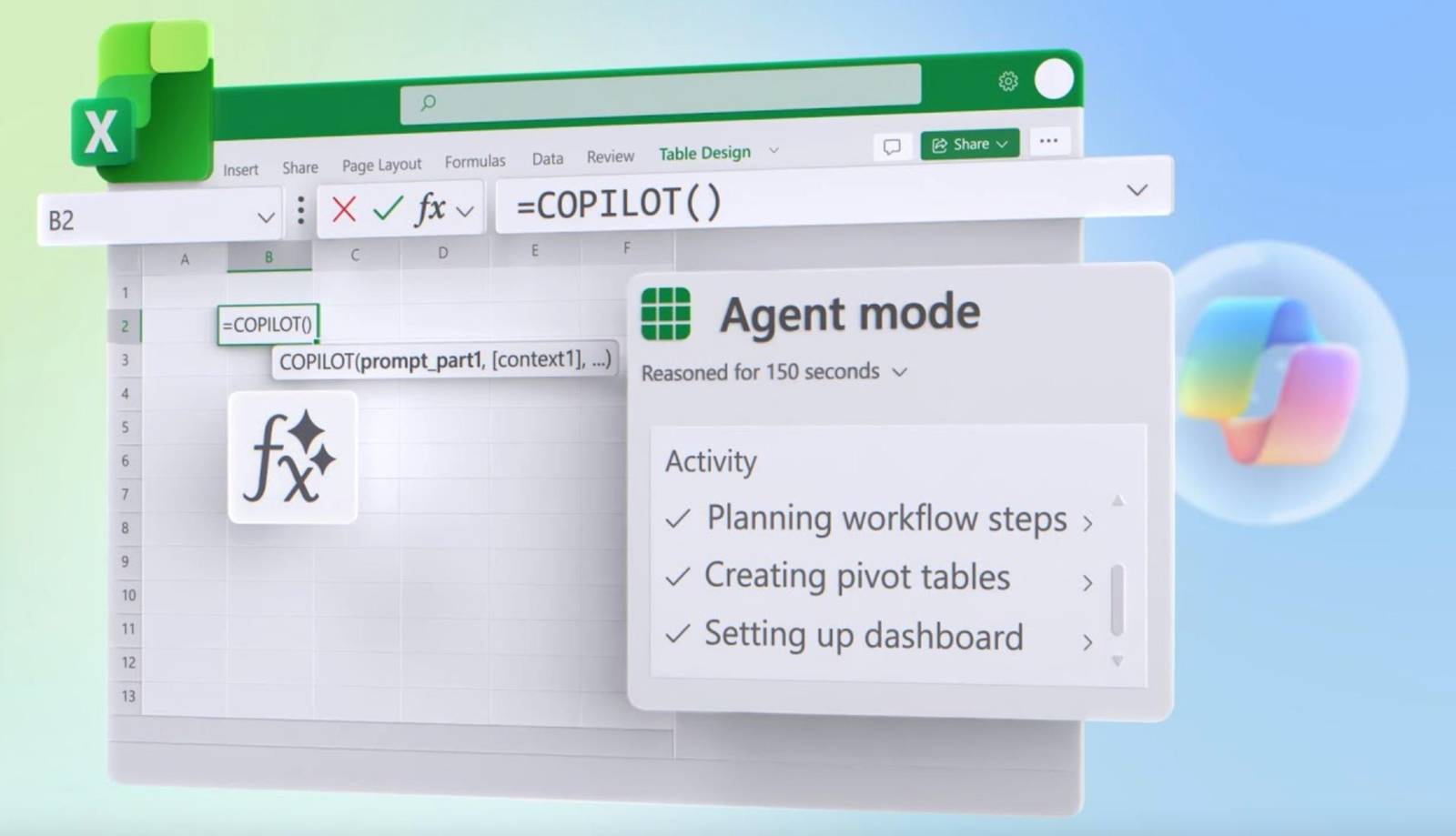
AI-powered Excel refers to the integration of large language model technology directly into Microsoft Excel through Microsoft Copilot. Rather than requiring users to know specific formula syntax or navigate complex menus, Copilot in Excel allows you to describe what you want to do in plain English — and the AI executes it instantly inside your spreadsheet.
Launched as part of Microsoft 365, Microsoft Copilot Excel is powered by the same underlying technology as OpenAI’s GPT models. It understands the structure of your data, the relationships between columns, and the context of your questions — then responds with formulas, summaries, charts, pivot tables, conditional formatting rules, or entire automated workflows based on your natural language request.
The Excel AI course designed around this technology is structured in 12 practical modules, taking a learner from zero familiarity with Copilot through to building production-ready, automated reporting systems. Each module builds directly on the last, ensuring that skills compound and reinforce throughout the learning journey.
Key definition
Microsoft Copilot in Excel is an AI assistant embedded in the Excel interface that responds to natural language prompts — writing formulas, building charts, cleaning data, generating pivot tables, and summarising insights — without requiring the user to know any specific Excel syntax or functions.
Microsoft Copilot in Excel is an AI assistant embedded in the Excel interface that responds to natural language prompts — writing formulas, building charts, cleaning data, generating pivot tables, and summarising insights — without requiring the user to know any specific Excel syntax or functions.
Section 2
Setup
Getting Started with Copilot in Excel
Before you can begin using Copilot in Excel, you need the right Microsoft 365 subscription. The Microsoft Copilot training course covers three tiers: individuals using Microsoft 365 Personal or Family with Copilot Pro, small businesses on Microsoft 365 Business Premium, and enterprise users on E3 or E5 plans with the Copilot add-on licence. Each tier activates the same core AI Excel features — though enterprise deployments add additional data governance and compliance layers.
Once your licence is in place, activating Microsoft Copilot Excel is straightforward. Open a workbook, navigate to the Home tab, and look for the Copilot button in the ribbon. Click it to open the Copilot sidebar — your primary interface for all AI interactions. The sidebar displays your conversation with Copilot, shows suggested prompts based on your current data, and presents action buttons that apply generated changes directly to your spreadsheet.
- S.1Confirm your Microsoft 365 subscription includes Copilot — check via account.microsoft.com
- S.2Open any Excel workbook and press Ctrl+T to convert your data to a structured Table
- S.3Click the Copilot button in the Home ribbon to open the AI sidebar
- S.4Type your first prompt — “Summarise this table in 5 bullet points” is an ideal starter
- S.5Iterate on the output — refine your prompt until Copilot delivers exactly what you need
Setup tip
Always press Ctrl+T to convert your data to an Excel Table before prompting Copilot in Excel. Structured Tables give the AI clear column names, data types, and relational context — dramatically improving the accuracy and relevance of every response.
Always press Ctrl+T to convert your data to an Excel Table before prompting Copilot in Excel. Structured Tables give the AI clear column names, data types, and relational context — dramatically improving the accuracy and relevance of every response.
Section 3
Features
Key Features of Microsoft Copilot in Excel
The AI-powered data analysis capabilities of Microsoft Copilot Excel span six core functional areas. Understanding each one helps you make the most of the Excel AI course and apply the right tool to each scenario in your real work.
1. Natural Language Formula Generation
Copilot Excel formulas are generated by describing what you want to calculate in plain English. You no longer need to remember the argument order for XLOOKUP, the nesting structure for nested IFs, or the syntax for array formulas. Describe the outcome — “calculate the rolling 30-day average of column C, skipping blank cells” — and Copilot in Excel writes the formula, explains it, and inserts it directly. This single capability alone saves the average analyst hours every week.
2. Instant Data Analysis & Insights
Excel data analysis with AI lets you interrogate datasets using conversational questions. Ask “which product category had the steepest revenue decline in Q3?” and Copilot queries the data, runs the relevant aggregations, and delivers a plain-English answer with supporting figures — no pivot table or SUMIF formula required. The AI Excel tutorial sections of the course train you to ask precise, outcome-oriented questions that return immediately actionable insights.
3. Automated Chart & Dashboard Creation
Building dashboards used to require significant time arranging charts, linking slicers, and formatting layouts. AI-powered Excel replaces that workflow with prompts: “Create a combo chart showing monthly revenue as bars and year-over-year growth as a line, with a legend and clean axis labels.” Copilot selects the correct chart type, maps the data fields, applies formatting, and inserts the result — in seconds. See the hands-on projects section for full dashboard build examples.
4. PivotTable Generation
PivotTable Copilot functionality allows you to describe the breakdown you need — “show total sales by region and product category for the last 6 months, sorted by highest revenue” — and receive a fully configured PivotTable that you can further refine. For users who found PivotTable field configuration confusing, this is genuinely transformative.
5. Intelligent Data Cleaning
Copilot data cleaning Excel capabilities cover the full spectrum of messy data scenarios: inconsistent capitalisation, mixed date formats, duplicated rows, rogue whitespace, and non-standard abbreviations. Describe the problem conversationally and Microsoft Copilot either applies a direct fix or generates the formula (TRIM, PROPER, SUBSTITUTE, CLEAN) that resolves it at scale across your entire dataset.
6. Conditional Formatting with AI
Copilot conditional formatting lets you apply complex visual rules by describing them. “Highlight all rows where actual revenue is more than 15% below target, in red” is a five-second prompt in Excel with Copilot — versus a multi-step manual process involving the Conditional Formatting dialog, custom formula entry, and colour picker navigation.
Section 4
Analysis
AI-Powered Data Analysis in Excel
Excel data analysis with AI represents the highest-value capability in the entire Microsoft Copilot training ecosystem. Before Copilot, performing meaningful analysis on a large dataset required knowing which functions to use, how to structure them, and how to interpret the results — a skill set that took years to develop. AI-powered Excel compresses that learning curve to near zero.
The analysis workflow in Copilot in Excel works in four phases: you load structured data, ask a natural language question, review the AI’s interpretation and proposed analysis approach, and then apply or refine the result. The critical skill the course teaches is the quality of the question — because Microsoft Copilot Excel performs dramatically better when prompts are specific, contextual, and outcome-oriented.
“You don’t need to know how to analyse data in Excel — you need to know what question to ask. Copilot handles the rest.“
Beyond basic analysis, the Excel AI course covers Excel forecasting with AI — using Copilot in Excel alongside Excel’s built-in FORECAST.ETS function to project future values with confidence intervals. This capability has historically required a data science background to implement correctly. With AI assistance, any analyst can produce credible, seasonality-aware forecasts in minutes.
Advanced feature spotlight
Combine AI-powered Excel with Python in Excel — now natively available in Microsoft 365 — to run pandas DataFrames, scikit-learn models, and matplotlib visualisations directly in your spreadsheet. Copilot in Excel can write the Python code for you. No data science background required.
Combine AI-powered Excel with Python in Excel — now natively available in Microsoft 365 — to run pandas DataFrames, scikit-learn models, and matplotlib visualisations directly in your spreadsheet. Copilot in Excel can write the Python code for you. No data science background required.
Section 5
Automation
Excel Automation with AI — Reclaim Your Time Permanently
Excel automation with AI is the module that generates the most visible, measurable return on learning investment. Every task you automate using Microsoft Copilot Excel is a task that runs itself from that point forward — compounding time savings indefinitely. The course dedicates an entire module to this capability, covering three layers of automation: in-spreadsheet macros, Office Scripts, and Power Automate cross-application flows.
Copilot Excel formulas generation is just the beginning of the automation story. The real power emerges when you ask Microsoft Copilot to write an Office Script — Microsoft’s modern, web-compatible macro language — that automates an entire sequence of operations. Format this table, sum these columns, sort by this criteria, export to PDF, email to these recipients. A workflow that previously required VBA expertise or hours of manual effort becomes a prompt and a button.
- A.1Identify your most time-consuming weekly Excel tasks — these are your automation targets
- A.2Ask Copilot to write an Office Script for each task — review, test, and deploy
- A.3Connect Excel to Power Automate — build flows that run on schedule without manual triggers
- A.4Combine Excel + Power Automate + Teams for end-to-end automated reporting pipelines
- A.5Build a personal productivity dashboard that updates and distributes itself every Monday morning
Automation ROI example
A marketing analyst using Excel automation with AI replaced a 3-hour manual weekly reporting process with a Power Automate + Copilot pipeline. Total setup time: 90 minutes. Weekly time saving: 3 hours. Annual return: 150+ hours reclaimed — equivalent to nearly four working weeks.
A marketing analyst using Excel automation with AI replaced a 3-hour manual weekly reporting process with a Power Automate + Copilot pipeline. Total setup time: 90 minutes. Weekly time saving: 3 hours. Annual return: 150+ hours reclaimed — equivalent to nearly four working weeks.
Section 6
Advanced
Advanced Excel + AI Features
The advanced module of the Microsoft Copilot training course covers the Excel features that most users know exist but have never felt confident using — until AI-powered Excel removes the technical barrier. Dynamic array formulas, advanced XLOOKUP Copilot-assisted lookups, conditional formatting at scale, and working efficiently with datasets exceeding 100,000 rows are all covered in practical, hands-on detail.
Dynamic array formulas — FILTER, SORT, UNIQUE, SEQUENCE, and their combinations — are among the most powerful additions to Excel AI features in recent years. They allow a single formula to output a dynamic range of results that automatically updates as source data changes. Copilot in Excel writes these formulas fluently from plain English descriptions, making them accessible to every skill level.
| Feature | Copilot prompt example | Output |
|---|---|---|
| XLOOKUP | Find the manager name for each employee ID in column A | Generated XLOOKUP formula with error handling |
| Dynamic FILTER | Show only rows where region is "North" and sales exceed 10,000 | FILTER formula with AND logic |
| PivotTable | Build a pivot showing revenue by category and month, sorted high to low | Fully configured PivotTable |
| Conditional Format | Highlight top 10% of values in column D in green, bottom 10% in red | Two-rule conditional format applied |
| Calculated Column | Add a column showing 90-day rolling average of daily revenue | AVERAGE with dynamic offset formula |
Section 7
Why Now
Why Learn Microsoft Copilot in Excel Right Now?
The job market signal for Microsoft Copilot Excel skills is unmistakable. LinkedIn job postings mentioning Copilot in Excel or Excel AI features grew by over 300% between 2024 and 2026. The roles are not confined to data analyst positions — they span finance managers, marketing operations leads, HR business partners, supply chain coordinators, and every other function where data processing forms part of the job description.
The window to gain a competitive advantage with AI Excel tutorial skills is real but narrowing. Early adopters of transformative productivity technologies consistently outcompete peers who wait. The professionals who learned Excel in the 1990s, pivot tables in the 2000s, and Power BI in the 2010s built career advantages that compounded for years. Excel automation with AI and Copilot Excel formulas fluency represent the equivalent opportunity today.
Market data — 2026
Roles explicitly requiring Microsoft Copilot skills for jobs now appear across finance (financial modelling with Copilot), marketing (campaign analysis with AI Excel), HR (HR dashboard Excel AI), and operations (inventory management Excel AI). Average salary premium for candidates demonstrating Copilot fluency: 12–18% above peers with equivalent Excel experience only.
Roles explicitly requiring Microsoft Copilot skills for jobs now appear across finance (financial modelling with Copilot), marketing (campaign analysis with AI Excel), HR (HR dashboard Excel AI), and operations (inventory management Excel AI). Average salary premium for candidates demonstrating Copilot fluency: 12–18% above peers with equivalent Excel experience only.
Section 8
Use Cases
Real-World Business Use Cases for Excel with Copilot
One of the most valuable sections of the Microsoft Copilot training course is the business use cases module. It demonstrates how Excel AI for business analysts, marketers, finance teams, HR departments, and operations professionals can each apply the same core AI-powered Excel capabilities to their specific daily workflows.
Sales Reports Automation
Sales managers using Excel Copilot practical examples describe territory performance data to Microsoft Copilot Excel and receive instant breakdowns of top deals, pipeline velocity, and at-risk accounts — formatted as executive summaries ready for the Monday morning meeting. What previously took 3–4 hours now takes under 15 minutes.
Marketing Campaign Analysis
Excel AI for marketing teams enables real-time, multi-channel campaign performance analysis. Copilot in Excel can combine data from three different source exports, calculate CTR, ROAS, and CPL per channel, identify the top-performing creative variants, and generate a stakeholder-ready summary — all from a series of structured prompts.
Financial Modelling with Copilot
Financial modelling with Copilot is among the highest-leverage applications of AI-powered Excel. Scenario models that previously required a dedicated financial analyst — three-way forecasts, sensitivity tables, DCF models — can now be scaffolded rapidly using Microsoft Copilot, with the AI writing the linking formulas, building the data tables, and generating the narrative summary for each scenario.
HR Dashboard Excel AI
HR dashboard Excel AI applications include headcount tracking, attrition analysis, compensation benchmarking, and diversity metrics — all built and maintained using Copilot in Excel prompts that non-technical HR professionals can operate without any formula knowledge.
Section 9
Prompts
Best Copilot Prompt Templates for Excel — Copy & Use Today
The Excel Copilot prompts for data analysis you use determine the quality of output you receive. The course’s prompting module teaches a structured framework — but here are the most effective Copilot Excel tips and tricks for immediate use, sourced from real professional workflows.
| Goal | Prompt template |
|---|---|
| Formula generation | Write a formula to calculate [metric] for each row, handling errors with a dash |
| Data summary | Summarise this table in 5 key bullet points for a non-technical manager |
| Trend identification | Which 3 months had the biggest month-over-month drops in [column]? |
| PivotTable | Build a pivot showing total [metric] by [dimension] sorted highest to lowest |
| Clean data | Standardise all entries in [column] — fix capitalisation and remove extra spaces |
| Chart creation | Create a [chart type] showing [data] by [category] with a clean, minimal style |
| Forecast | Forecast the next 6 months of [metric] based on historical data in columns A and B |
| Conditional format | Highlight rows where [column] is more than 20% below the column average in red |
| Outlier detection | Identify rows where [column] is more than 2 standard deviations from the mean |
| Script automation | Write an Office Script to format this table, freeze the top row, and auto-fit columns |
Prompt quality rule
Every strong Microsoft Copilot Excel prompt contains three elements: a clear action verb (“write”, “summarise”, “identify”, “create”), a specific data reference (“column C”, “this table”, “the highlighted range”), and an output format (“as a formula”, “in bullet points”, “as a bar chart”). Lead with all three and your output quality improves immediately.
Every strong Microsoft Copilot Excel prompt contains three elements: a clear action verb (“write”, “summarise”, “identify”, “create”), a specific data reference (“column C”, “this table”, “the highlighted range”), and an output format (“as a formula”, “in bullet points”, “as a bar chart”). Lead with all three and your output quality improves immediately.
Section 10
Projects
Hands-On Projects — Build a Real Portfolio
The business use cases module feeds directly into the four capstone projects. These are production-ready deliverables you can show employers and clients as proof of your AI Excel skills for jobs.
Project 01
Sales Dashboard
Interactive sales performance dashboard with regional breakdown, target vs actual, and trend charts — built entirely through Copilot in Excel prompts with dynamic slicers.
Finance · Visualization
Project 02
Marketing Tracker
Multi-channel campaign performance tracker with automatic ROAS, CPL, and CTR calculations — powered by Excel AI for marketing workflows.
Marketing · Analytics
Project 03
Expense Analyzer
Raw expense data cleaned, categorised, and summarised using Copilot data cleaning Excel — outputs a formatted monthly management report automatically.
Finance · Automation
Project 04
Auto Report Generator
A fully automated weekly reporting pipeline using Office Scripts + Power Automate + Microsoft Copilot Excel — zero manual effort after setup.
Automation · Scripts
Section 11
Career
Excel + AI Skills for Jobs — Career & Salary Impact
Excel AI skills for jobs have moved from a nice-to-have to an active filter in hiring processes across finance, marketing, operations, and HR. Organisations that have deployed Microsoft Copilot training internally are now prioritising external hires who arrive already fluent — reducing onboarding costs and accelerating time to productivity.
The Microsoft Copilot certification path — via the Microsoft 365 Fundamentals exam and specialist Copilot credentials — signals verified competency to employers. Combined with a portfolio of completed real project work, the Microsoft Copilot Excel skill set is one of the most efficient career investments available in 2026. The Excel Copilot practical course is specifically designed to produce both certified knowledge and demonstrated output.
Resume & portfolio tip
Do not list “Microsoft Copilot” as a bullet point skill. Instead, describe a specific outcome: “Reduced weekly sales reporting time from 4 hours to 20 minutes using AI-powered Excel and Power Automate automation.” Quantified outcomes from Excel automation with AI projects outperform skills lists every time.
Do not list “Microsoft Copilot” as a bullet point skill. Instead, describe a specific outcome: “Reduced weekly sales reporting time from 4 hours to 20 minutes using AI-powered Excel and Power Automate automation.” Quantified outcomes from Excel automation with AI projects outperform skills lists every time.
Section 12
Frequently Asked Questions — People Also Ask
1.What is Microsoft Copilot in Excel?
Microsoft Copilot in Excel is an AI assistant embedded in the Excel interface that generates formulas, analyses data, builds charts, cleans datasets, and creates pivot tables — all from plain English prompts. It is included with Microsoft 365 Copilot subscriptions and requires no coding or formula knowledge to use effectively.
2.Is Microsoft Copilot free in Excel?
Copilot in Excel requires a paid subscription. It is available through Microsoft 365 Personal or Family plans with a Copilot Pro add-on (approximately $20/month), or through Microsoft 365 Business and Enterprise plans with the Copilot for Microsoft 365 licence. A free trial is available through Microsoft’s website.
3.Can Copilot write Excel formulas automatically?
Yes — Copilot Excel formulas generation is one of its most powerful features. You describe the calculation in plain English, and Microsoft Copilot writes the complete formula including complex functions like XLOOKUP, FILTER, LAMBDA, and nested IFs. It also explains the formula so you understand what was generated.
4.Does Copilot replace Excel skills?
No — AI-powered Excel amplifies existing skills rather than replacing them. Users who understand Excel’s logic, data structures, and output requirements get dramatically better results from Copilot in Excel than users with no foundation. The Excel AI course includes a fundamentals refresher module for this reason.
5.How do I enable Copilot in Excel?
Open Excel with a compatible Microsoft 365 subscription, open any workbook, and click the Copilot button in the Home ribbon. If the button is not visible, ensure your subscription is active at account.microsoft.com and that you are running the latest Excel version. Converting your data to a Table (Ctrl+T) before opening the Copilot pane produces the best results.
6.What are the best use cases for Excel AI for business analysts?
Excel AI for business analysts is most impactful for automated reporting, multi-dimensional data analysis, forecasting, dashboard creation, and data cleaning. The Excel Copilot practical course covers all five areas with real-world project work. See the business use cases section for detailed scenario breakdowns.
7.Is there a free Microsoft Copilot Excel course?
Yes — Microsoft Learn offers free foundational Microsoft Copilot training modules. LinkedIn Learning and Coursera offer structured paid courses with certificates. The complete Excel Copilot practical course described in this guide is available on multiple platforms — check the career section for direct links.
Final
Start Your AI-Powered Excel Journey Today
Microsoft Copilot in Excel is not the future — it is the present. Every week you spend working in Excel without it is a week of compounding productivity left on the table. The Excel AI course gives you 12 structured modules, 4 portfolio projects, and 50+ prompt templates to go from curious to confident. The most important step is the first prompt you write in a real workbook with real data.