

Currently Empty: ₹0.00
Advance And Trending Topics, Blog, Career and Salary Focused, Industry specific and business, Learning and course related, Learning And Course Related
Master Excel with AI Copilot: Complete Practical Course for High-Paying Jobs (2026)
April 14, 2026
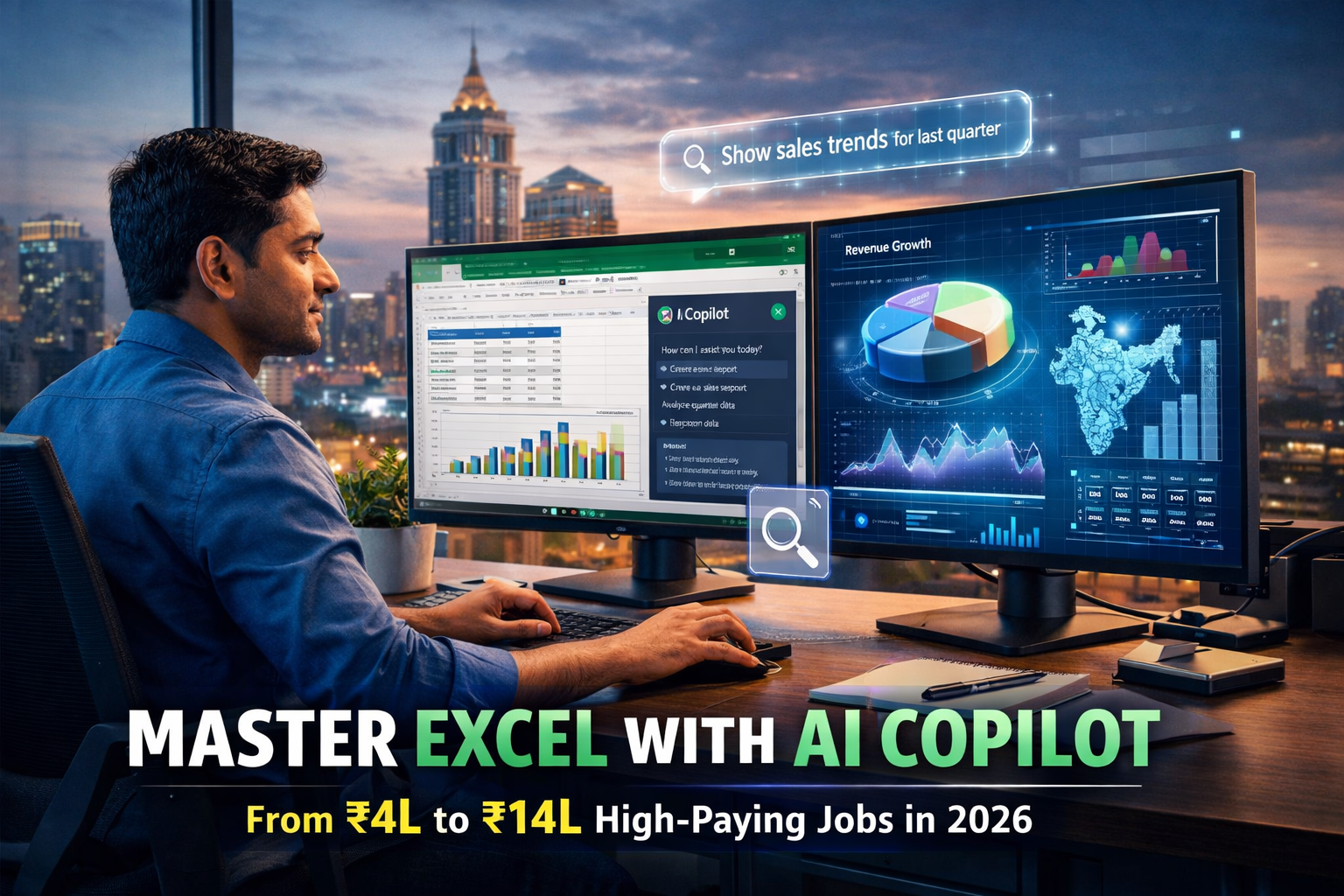
Master Excel with AI Copilot: Complete Practical Course for High-Paying Jobs (2026)
If you have ever spent hours building the same monthly report, manually cleaning messy data, or trying to remember the exact syntax of a VLOOKUP — those days are officially over.
Excel with AI Copilot has fundamentally changed how professionals work with data, and in 2026, knowing how to use it is quickly becoming the difference between a ₹4 LPA job and a ₹14 LPA one.
This guide covers everything: what AI Copilot in Excel actually does, why it matters for your career, the skills you need, and how a structured course at
Cambridge Infotech
can take you from complete beginner to workplace-ready professional in under 8 weeks.
Microsoft Excel + AI Copilot: The Complete Beginner-to-Advanced Guide
Microsoft Copilot
is an AI assistant built directly into Microsoft 365 apps — including Excel, Word, PowerPoint, and Teams.
In Excel specifically, AI Copilot acts like a data analyst sitting next to you, ready to answer questions about your spreadsheet, write complex formulas, create pivot tables, and highlight trends — all from a simple natural language prompt.
Think of it this way: instead of spending 45 minutes writing a nested IF-VLOOKUP formula, you simply type “Show me which products had revenue below target last quarter” and Excel with AI Copilot generates the analysis instantly.
What Can AI Copilot Actually Do in Excel?

- Natural language queries — ask questions about your data in plain English
- Formula generation — describe what you need and Copilot writes the formula
- Automatic data cleaning — identify and fix inconsistencies, duplicates, and formatting errors
- Instant pivot tables — summarise large datasets with a single sentence
- Chart recommendations — Copilot suggests the best visualisation type for your data
- Trend analysis — spot patterns, outliers, and anomalies without manual effort
- Text summaries — generate plain-English explanations of complex spreadsheet data
- Conditional formatting automation — apply visual rules across thousands of rows instantly
According to
Microsoft’s 2025 Work Trend Index,
professionals using AI Copilot complete data analysis tasks up to 29% faster than those using traditional Excel.
That efficiency gap directly translates to salary and promotion potential.
To get the most out of Excel with AI Copilot, you still need a solid Excel foundation.
Cambridge Infotech’s
Basic Excel course in Bangalore
is the ideal starting point before progressing to AI Copilot features — it covers the fundamentals that make Copilot’s output actually meaningful to you.
From Beginner to Pro: Excel with AI Copilot — Complete Learning Path
One of the most common misconceptions about Excel with AI Copilot is that you need to already be an Excel expert to benefit from it. That is not true. Copilot is designed to work for users at every level — but the more Excel knowledge you have, the more strategically you can direct Copilot to do powerful things.
Here is the three-stage learning path that turns a complete beginner into a confident, job-ready Excel and AI user:
Stage 1 — Excel Foundations (Weeks 1–2)
Start with core Excel skills: navigation, data entry, basic formulas (SUM, AVERAGE, COUNT), cell formatting, sorting, and filtering.
You do not need to master these before using Copilot, but understanding what a formula does helps you verify whether Copilot’s output is correct.
Cambridge Infotech’s
Basic Excel training
covers this stage fully in a structured, practical format.
Stage 2 — Intermediate Excel + Copilot Introduction (Weeks 3–4)
At this stage you graduate to VLOOKUP, HLOOKUP, IF statements, nested formulas, and pivot tables.
This is also where AI Copilot in Excel becomes your first practical co-worker: you use it to help write formulas you are not yet confident with, ask it to explain formulas you inherit from colleagues, and begin using it for quick data summaries.
Cambridge Infotech’s
Advanced Excel course
bridges stages 2 and 3 and is taught by trainers with active corporate Excel and analytics experience.
Stage 3 — Advanced Excel + Full AI Copilot Mastery (Weeks 5–8)
Advanced stage covers Power Query, Power Pivot, dynamic arrays, XLOOKUP, complex dashboard design, conditional formatting at scale, automation with macros, and full
Microsoft Copilot Excel
integration — including directing Copilot through multi-step analysis workflows, connecting it to live data sources, and using Copilot-generated Python scripts (a new Microsoft 365 feature) inside Excel cells.
Unlock Excel with AI Copilot: Smart Data Analysis & Automation Skills
When you fully unlock Excel with AI Copilot, you gain a skill set that employers in finance, marketing, HR, logistics, and operations are actively hunting for in 2026. Here is what you will be able to do:
| Skill | Without Copilot | With AI Copilot |
|---|---|---|
| Monthly sales report | 2–3 hours manual work | 15 minutes with Copilot prompt |
| Complex nested formula | Research + trial and error | Describe it in English → generated instantly |
| Data cleaning (10,000 rows) | Hours of manual review | Copilot identifies and fixes inconsistencies |
| Insight from dataset | Manual pivot + chart analysis | Ask “what are the key trends?” → instant summary |
| Dashboard for management | Full day design + formatting | Copilot generates charts + layout suggestions |
| Anomaly detection | Manual row-by-row review | Copilot flags outliers automatically |
Building this skill stack connects naturally with data analytics more broadly.
If you want to extend your capabilities beyond Excel into Python-based data analysis,
Cambridge Infotech’s
Data Analytics course in Bangalore
is the logical next step after mastering Excel with AI Copilot.
Excel Automation with AI Copilot: Transform Your Data Skills Fast
Automation is where Excel with AI Copilot delivers its most dramatic ROI.
Tasks that used to require VBA knowledge or hours of manual effort can now be completed in minutes — even by professionals with no programming background.
5 Powerful Ways Copilot Automates Yo ur Excel Workflow
 ur Excel Workflow
1. Automated Formula Writing
Simply describe the calculation you need — “calculate the percentage change between column B and column C for each row” — and AI Copilot in Excel writes the correct formula and applies it to the entire column. No syntax knowledge required.
2. Conditional Formatting at Scale
Instead of manually configuring rules, tell Copilot: “highlight cells in column D where the value is more than 20% below the average.” It applies the rule instantly across thousands of rows with the correct colour coding.
3. Automated Data Cleaning
Real-world data is messy — inconsistent date formats, mixed capitalisation, trailing spaces, and duplicate entries.
Microsoft Copilot in Excel
can identify and suggest fixes for these issues with a single prompt, saving hours of manual correction.
4. Instant Pivot Table Generation
Ask Copilot “summarise total revenue by region and product category for Q1 2026” and it generates a fully formatted pivot table in seconds. Professionals who used to spend 30 minutes building pivots from scratch now complete the same task in under 2 minutes.
5. Python Script Automation Inside Excel
Microsoft’s newest integration allows AI Copilot to write
Python scripts that run directly inside Excel cells.
This means statistical modelling, machine learning predictions, and API data pulls are now accessible to Excel users without needing to open a separate IDE.
Cambridge Infotech’s
Advanced Python course
pairs perfectly with Excel + Copilot training for professionals who want to unlock this capability fully.
Excel + Copilot Mastery: Build Smart Dashboards & Automate Work Easily
A professional-grade Excel dashboard used to require advanced knowledge of named ranges, dynamic charts, slicers, and complex layout formatting — skills that took months to develop.
With Microsoft Copilot Excel integration, building a smart, interactive dashboard is now accessible to anyone with basic Excel knowledge and the right training.
What Makes a “Smart Dashboard” in 2026?
A smart dashboard built with Excel and AI Copilot combines:
- Dynamic data connections — live-linked data that refreshes automatically from internal or external sources
- AI-generated insights panel — a plain-English summary section where Copilot describes what the data is showing, updated each time the sheet refreshes
- Automated anomaly flags — conditional formatting rules that Copilot generates and maintains to highlight metrics that need attention
- Interactive filters — slicers and drop-down selectors that let non-technical stakeholders navigate data without modifying the underlying spreadsheet
- Chart recommendations — Copilot suggests chart types based on your data structure, reducing the guesswork in visual communication
These dashboard skills are directly applicable to roles like Business Analyst, MIS Executive, Financial Analyst, and Operations Manager.
For professionals who want to go beyond Excel dashboards into Power BI visualisations,
Cambridge Infotech’s
Power BI training in Bangalore
is the natural companion course — and both tools are increasingly used together in enterprise environments.
Pro tip: When building dashboards with AI Copilot, always start by asking Copilot to “describe the structure of this dataset” before building any visuals. Copilot’s summary will reveal column types, data ranges, and potential quality issues that would otherwise slow you down later.
AI Copilot in Excel: The Powerful Course for Data Analysis & Career Growth
Let us talk about the career math — because this is ultimately why learning
Excel with AI Copilot is one of the highest-ROI investments you can make in 2026.
Jobs That Now Require Excel + AI Copilot Skills
| Job Role | Average Salary (Bangalore 2026) | AI Copilot Use Case |
|---|---|---|
| Data Analyst | ₹6–12 LPA | Trend analysis, pivot automation, dashboard generation |
| Financial Analyst | ₹7–15 LPA | Budget modelling, variance analysis, forecasting |
| MIS Executive | ₹4–9 LPA | Automated reporting, data consolidation, smart dashboards |
| Business Analyst | ₹8–18 LPA | Requirements analysis, stakeholder reporting, scenario modelling |
| HR Analyst | ₹5–10 LPA | Headcount tracking, payroll analysis, attrition dashboards |
| Operations Manager | ₹10–20 LPA | Supply chain tracking, KPI dashboards, performance reporting |
According to
The Economic Times,
demand for professionals with combined Excel and AI tool skills grew by over 35% in India in 2025.
Companies in Bangalore’s finance, consulting, and technology sectors are paying a clear premium for employees who can automate reporting with AI Copilot in Excel rather than doing it manually.
To maximise your salary potential after learning Excel with AI Copilot,
pairing it with data visualisation skills creates a particularly strong job profile.
Cambridge Infotech’s
Data Visualisation course
and
Tableau training
complement Excel + Copilot training perfectly for anyone building toward a senior analyst or BI specialist role.
The Future of Excel: Learn AI Copilot for Data Analysis & Dashboards
Microsoft has made clear that AI Copilot is not a temporary feature — it is the strategic direction of the entire Microsoft 365 suite.
The roadmap includes deeper integration with
Power BI,
Microsoft Fabric, and Dynamics 365 — meaning Excel Copilot skills you build today will transfer across an expanding ecosystem of enterprise tools.
Here is what the next 12–24 months of Excel with AI Copilot development looks like:
- Real-time collaboration with AI suggestions — Copilot will offer contextual suggestions as multiple team members edit the same spreadsheet simultaneously
- Voice-prompted analysis — Microsoft is testing voice-driven Copilot interactions, allowing you to ask data questions while looking at a presentation
- Deeper Python integration — the Python-in-Excel feature will expand, allowing Copilot to write and debug statistical analysis code inside cells
- Cross-app intelligence — Copilot will be able to pull data from Teams conversations, Outlook emails, and SharePoint documents directly into your Excel analysis
- Predictive modelling templates — pre-built Copilot-guided templates for forecasting, regression, and scenario planning aimed at non-data-scientist users
None of these advancements make foundational Excel knowledge obsolete.
They make it more powerful. Every new Copilot feature builds on the same underlying Excel logic —
tables, ranges, formulas, and data structure — that a structured
Excel and AI Copilot course
teaches you to understand and control.
Smart Excel with AI Copilot: What to Look for in a Course
With so many Excel courses available online, it is easy to waste time on content that teaches you 2019-era Excel without any AI integration.
If you are investing in learning Excel with AI Copilot in 2026, here is exactly what your course should include:
1. Curriculum That Covers Both Excel and Copilot Together
A course that teaches Excel in isolation and then adds one module on Copilot at the end is not an integrated course — it is an old course with a new label.
Look for programmes where Copilot is woven into the Excel learning from Stage 2 onwards, not bolted on.
2. Real Business Datasets, Not Toy Examples
You will encounter messy, large, real-world data at work.
Your course should train you on datasets that mirror actual business scenarios — sales data, HR records, financial statements, and operational reports — not clean tutorial examples with 20 rows.
3. Dashboard Projects You Can Show in Interviews
The single most powerful thing you can take into a job interview is a dashboard you built yourself.
Recruiters hiring for analyst roles routinely ask candidates to share a sample of their Excel work.
A good course produces 3–5 portfolio-quality dashboards before you graduate.
4. Trainer Experience in Live Corporate Environments
Someone who teaches from textbooks cannot prepare you for the way Excel is actually used in a CFO’s reporting team or a supply chain operations centre.
Trainers at Cambridge Infotech are active professionals currently using
Advanced Excel and Microsoft 365 Copilot
in corporate roles — which means the scenarios you practice are drawn from real workplace situations.
5. Placement Support After Completion
Learning Excel with AI Copilot is only half the value — the other half is knowing how to position that skill for the jobs you want.
Look for courses that offer resume review, mock technical tests, and direct connections to hiring companies.
Cambridge Infotech’s
placement cell
actively connects Excel and data graduates with Bangalore-based companies in finance, IT services, and business analytics.
For professionals who already have some Excel exposure and specifically want to level up to AI-driven workflows,
Cambridge Infotech’s
MIS Data Management course
also integrates Excel automation into real MIS reporting systems — a high-demand skill in operations and finance teams.
Excel AI Revolution: Save Time, Automate Tasks & Get Ahead in 2026
The professionals who will thrive in data-related roles over the next five years are not necessarily those who know the most formulas — they are the ones who know how to direct AI tools to amplify their output.
Excel with AI Copilot is that amplifier.
Consider a typical analyst week without Copilot: 6 hours in manual report preparation, 3 hours cleaning data, 4 hours building charts and pivot tables — that is 13 hours of repeatable, automatable work.
With AI Copilot in Excel, that same 13 hours compresses to under 4, freeing you to focus on interpretation, strategy, and communication — the skills that lead to promotions.
The
World Economic Forum’s Future of Jobs Report 2025
identifies AI and data literacy as the top two skills employers will prioritise through 2030.
Learning Excel with AI Copilot places you squarely at the intersection of both.
Frequently Asked Questions
1. What is Microsoft Copilot in Excel?
Microsoft Copilot in Excel is an AI-powered assistant built into
Microsoft 365
that helps you analyse data, write formulas, generate charts, and automate repetitive tasks using natural language prompts — no coding required.
2. Do I need coding skills to use AI Copilot in Excel?
No. AI Copilot in Excel is designed for everyone from complete beginners to experienced professionals. You type what you want in plain English, and Copilot handles the formulas, analysis, and formatting. For professionals who later want to extend their skills into Python automation inside Excel, Cambridge Infotech’s Advanced Python course provides that next-level capability.
3. What Microsoft 365 plan do I need to access Excel Copilot?
Microsoft Copilot requires a Microsoft 365 Personal, Family, Business, or Enterprise subscription that includes the Copilot add-on. It is not available in the free web version of Excel.
4. Can learning Excel with AI Copilot help me get a high-paying job?
Yes — significantly. Professionals who combine Excel expertise with AI Copilot skills are in growing demand across finance, HR, marketing, and operations. Roles like Data Analyst, Financial Analyst, and Business Intelligence Analyst now list AI tool proficiency as a key requirement, with salaries ranging from ₹6 to ₹18 LPA in Bangalore alone.
5. Is Excel still relevant in 2026 with AI tools available?
Absolutely. Excel remains the most widely used data tool in the world, with over one billion active users. In 2026, Excel has become more powerful — not less — because of AI Copilot integration. The skill floor for competitive analysts has simply risen: basic Excel is now the minimum, Excel with AI Copilot is the differentiator.
6. What is the difference between Excel Copilot and normal Excel formulas?
Traditional Excel requires you to know formula syntax and logic. AI Copilot in Excel lets you describe what you want in plain English and automatically generates the formula, chart, or pivot table for you — eliminating the need to memorise syntax while dramatically speeding up analysis.
7. How long does it take to learn Excel with AI Copilot?
A structured beginner-to-advanced course typically takes 4 to 8 weeks of focused learning.
Cambridge Infotech’s
Advanced Excel course in Bangalore
provides a complete, practical learning path from fundamentals through AI Copilot integration — designed for both freshers and working professionals with flexible weekday and weekend batch timings.
8. What tasks can AI Copilot automate in Excel?
AI Copilot in Excel can automate: formula writing, data cleaning, pivot table creation, conditional formatting, chart generation, trend analysis, anomaly detection, natural language summaries of large datasets, and repetitive data entry tasks. When combined with Power Query, it can also automate multi-source data consolidation workflows that previously required VBA scripting.
Start Mastering Excel with AI Copilot Today
Join Cambridge Infotech’s Advanced Excel + AI Copilot course in Bangalore.
Live projects · Certified trainers · Dashboard portfolio · 100% placement support
Call / WhatsApp: +91 99024 61116 |
enquiry@cambridgeinfotech.io