

Excel with AI in 2026 — Copilot, Smart Functions & Automation Complete Guide
Excel has been the most widely used business software in India for three decades. Every finance team, every HR department, every operations manager — almost everyone who works in an office uses Excel in some form.
But Excel with AI in 2026 is not the Excel of 2020. It has been fundamentally transformed by artificial intelligence — and most Excel users in India are still working the old way, missing capabilities that could cut their work time by 40–60%.
This guide covers every major Excel with AI feature available in 2026: what each feature does, why it matters, and how to use it effectively. According to Microsoft’s 2025 Work Trend Index, professionals using AI-integrated Excel report saving an average of 10 hours per week on data tasks — the equivalent of a full working day.
Why Excel with AI matters more than ever
When ChatGPT arrived, many people assumed spreadsheet skills would become less relevant. The opposite has happened.
Excel with AI has made Excel more powerful, not less important. The professionals who are most productive in 2026 are those who use AI inside Excel to do in minutes what used to take hours.
In India specifically, Excel remains the primary tool for MIS reporting, financial modelling, HR data management, sales tracking, and business analysis. The skill gap between an Excel with AI user and a basic Excel user is now equivalent to the gap in 2010 between someone who knew pivot tables and someone who did not.
Feature 1 — Microsoft Copilot in Excel (Excel with AI, flagship feature)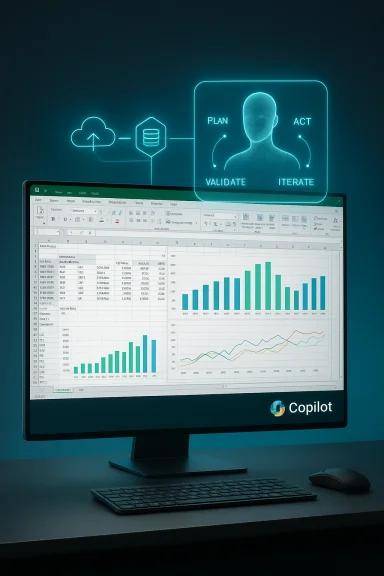
Microsoft Copilot is the most significant addition to Excel in its history and the centerpiece of the Excel with AI experience. According to Microsoft’s Copilot documentation, Copilot is an AI assistant built directly into the Excel interface.
What Excel with AI Copilot does
Natural language analysis: Type “Show me which products had below-average sales in Q3” and the Excel with AI Copilot identifies them, highlights the rows, and explains the pattern.
Formula generation: Describe what you need — “A formula that counts employees who joined after January 2024 and are in the Sales department” — and Excel with AI writes it. No more searching for formulas online.
Data cleaning: “Remove all rows where the email address column is empty” — Excel with AI Copilot applies transformations that previously required Power Query knowledge.
Chart creation and summary: “Create a line chart showing revenue trend by month for each product category” — Excel with AI builds it instantly. “What are the top 3 insights from this sales data?” — Excel with AI produces a structured analytical summary.
When to use Excel with AI Copilot vs when to use formulas
Excel with AI Copilot is best for: exploratory analysis, one-off questions, data cleaning, and creating first drafts of charts and summaries.
Traditional formulas are better for: calculations that need to update automatically as data changes, reusable templates, and situations where formula logic needs to be audited.
The ideal Excel with AI workflow: use Copilot to figure out the logic, then ask Copilot to write the formula so it stays live and dynamic.
Feature 2 — XLOOKUP (the Excel with AI era VLOOKUP replacement)
If there is one Excel with AI skill that every Indian professional should update in 2026, it is switching from VLOOKUP to XLOOKUP.
Microsoft’s XLOOKUP documentation explains this fully, but here is the essential difference: VLOOKUP can only look to the right, breaks if you insert columns, and requires counting column numbers. XLOOKUP solves all of these — it can look left, right, up, or down, uses column references instead of numbers, has a built-in “if not found” argument, and can return multiple columns at once.
XLOOKUP syntax:
=XLOOKUP(lookup_value, lookup_array, return_array, [if_not_found])
Example in Excel with AI context:
=XLOOKUP(A2, EmployeeTable[ID], EmployeeTable[Department], "Not found")
This is a cornerstone of modern Excel with AI proficiency.
Feature 3 — Dynamic Arrays and the SPILL functions
Dynamic arrays are one of the most powerful changes to the Excel with AI era formula engine. They allow a single formula to return multiple results that automatically “spill” into adjacent cells.
Microsoft’s dynamic arrays guide covers all the technical details. The key Excel with AI functions:
FILTER: =FILTER(SalesData, SalesData[Region]="South", "No results") — returns only South region rows, dynamically updated.
SORT and SORTBY: =SORTBY(ProductTable, ProductTable[Revenue], -1) — sorts by Revenue descending, always live.
UNIQUE: =UNIQUE(CustomerTable[City]) — gives you a clean, dynamic list of distinct cities.
SEQUENCE: =SEQUENCE(12, 1, 1, 1) — generates numbers 1–12, useful for dynamic calendar grids.
These Excel with AI dynamic functions eliminate the manual filtering and complex array formulas that used to define advanced Excel work.
Feature 4 — Analyse Data (AI-powered insights in Excel with AI)
The “Analyse Data” button uses machine learning to automatically identify patterns, anomalies, and insights in your data — a core part of the Excel with AI experience.
Select your data range, click Analyse Data in the Home tab, and Excel presents automatically generated insights: trend charts, outlier identification, top/bottom performers, and correlation observations. Microsoft’s Analyse Data guide is the best reference for getting the most from this Excel with AI feature.
Feature 5 — Power Query for automated data transformation
Power Query is Excel’s built-in ETL tool and one of the most underused Excel with AI features available. It allows you to connect to data sources, clean and transform data, and refresh everything with a single click when source data changes.
Microsoft’s Power Query documentation is comprehensive. In the Excel with AI era, Power Query includes:
Column From Examples: Show Excel two or three examples of the transformation you want, and it figures out the rule — an AI-powered Excel with AI feature that makes data transformation accessible to non-technical users.
Fuzzy matching for merges: When combining tables that do not have exactly matching keys (for example, “Bangalore” in one table and “Bengaluru” in another), Excel with AI Power Query finds approximate matches rather than failing on string mismatches.
For Indian professionals, Power Query is the Excel with AI feature that most dramatically reduces time spent on monthly MIS report preparation.
Feature 6 — Python in Excel (Excel with AI advanced tier)
Microsoft has introduced Python in Excel as a native formula — one of the most significant additions to the Excel with AI stack.
You can now write Python code directly in an Excel cell using =PY(). The Python runs on Microsoft’s cloud servers and the results appear directly in your spreadsheet.
What Python in Excel with AI enables:
- Statistical analysis using NumPy and Pandas — capabilities far beyond Excel’s native statistics
- Machine learning using scikit-learn — train prediction models directly from Excel data
- Advanced visualisation using Matplotlib
- Text processing using Python’s NLP libraries
For Indian finance and analytics professionals, Python in Excel with AI bridges the gap between Excel (where business stakeholders work) and Python (where data professionals work).
Feature 7 — Smart autocomplete and formula suggestions
Excel with AI now shows contextual formula suggestions as you type, similar to how a code editor suggests completions. When you start typing a formula near a data table, Excel with AI suggests relevant column references and function arguments.
For complex nested formulas, Excel with AI also shows a real-time preview of what the formula will return before you press Enter — helping you catch logical errors before they propagate through your spreadsheet.
The Excel with AI skills that matter most in India in 2026
Based on what employers in Bangalore are hiring for, these Excel with AI competencies carry the most weight:
- Microsoft Copilot proficiency — using AI to accelerate analysis and reporting
- Dynamic array functions — FILTER, SORT, UNIQUE, XLOOKUP, SEQUENCE
- Power Query — automated data transformation and refresh
- Dashboard creation — combining charts, pivot tables, and dynamic ranges
- Python in Excel — for analytics-focused roles
- Data validation and error handling — building robust, error-proof spreadsheets
According to LinkedIn India’s Skills on the Rise 2025, “Microsoft Copilot” and “Excel AI features” both appear in the top 20 fastest-growing professional skills in India.
FAQs
1.Do I need to upgrade Office to get these Excel with AI features?
Most dynamic array functions are available in Microsoft 365 and Office 2021+. Microsoft Copilot in Excel requires a Microsoft 365 subscription with the Copilot add-on. Python in Excel is currently rolling out to Microsoft 365 subscribers.
2.Is VLOOKUP still worth learning in the Excel with AI era?
You should understand VLOOKUP because you will encounter it in existing spreadsheets. But for new Excel with AI work, always use XLOOKUP. Any Excel with AI course that teaches VLOOKUP without XLOOKUP is behind the times.
3.How long does it take to become proficient in Excel with AI?
For someone with basic Excel knowledge: 6–8 weeks of structured training with daily practice. A structured Excel with AI course compresses this significantly because the practice scenarios build skills in the right sequence.
Learn Excel with AI and Microsoft Copilot in Bangalore
Cambridge Infotech’s Copilot & Excel with AI course covers every feature in this guide — from XLOOKUP and dynamic arrays to Copilot integration, Power Query, and Python in Excel. Designed for working professionals, with weekday and weekend batches.
View course syllabus, fees and upcoming batch dates →
Our Most Popular Courses
🔹 Data Science Course
🔹 Data Analytics Course
🔹 Artificial Intelligence Course
🔹 Machine Learning Course
🔹 Python Programming
🔹 Generative AI Course
🔹 Digital Marketing Course
🔹 Software Testing Course
The next batch starts soon. Come meet us, sit in on a class, and make your decision from real experience rather than a website comparison.
📍 3rd Floor, 137 Valmiki Main Rd, Kalyan Nagar, Bangalore 560043
📞 +91 9902461116 ✉️ enquiry@cambridgeinfotech.io
Small batches | Real-project training | Manual + Automation covered | 100% placement assistance | EMI available`