

Currently Empty: ₹0.00

AI-Powered Excel with Copilot:The Complete Practical Course
A comprehensive walkthrough of every module — from understanding what AI in Excel actually means, to building automated dashboards, writing advanced formulas with your voice, and landing better jobs because of it all.
There has never been a better — or more urgent — time to master Microsoft Excel combined with AI. For decades, Excel sat at the heart of global business operations, from startup cash flow projections to Fortune 500 financial models. Hundreds of millions of professionals spent years memorizing obscure formula syntax, building pivot tables by hand, and wrestling with datasets that refused to behave. All of that is changing at a pace that is genuinely difficult to overstate.
Microsoft Copilot — embedded directly inside Excel as part of the Microsoft 365 ecosystem — is not a gimmick or a bolt-on feature. It is a fundamental reimagining of how humans and spreadsheets interact. You can now describe what you want in plain English, and Copilot will write the formula, clean the data, build the chart, generate the pivot table, and summarize the findings — all without you needing to remember a single function argument. This course exists to turn that capability into a professional skill you can demonstrate, deploy, and get paid for.
What follows is a deep-dive walkthrough of every module in the AI-Powered Excel with Copilot: Complete Practical Course. For each module you will find a detailed explanation of what is covered, why it matters, how it connects to real work, key tips and warnings, and links to the best external resources available. Whether you are just beginning or already comfortable in Excel, this blog gives you the complete roadmap.
“The most important thing to understand about Copilot in Excel is that it does not replace your spreadsheet skills — it multiplies them.”
Module 1
Introduction to AI in Excel
Every great learning journey begins with context. Before you write your first Copilot prompt or clean your first dataset with AI assistance, you need to understand the landscape you are stepping into. Module 1 answers the most fundamental questions: what is AI in productivity software, how did it arrive in Excel, and why does it matter to your career right now?
The module opens by distinguishing between the different flavors of artificial intelligence that have been baked into Microsoft Office over the past decade — from Flash Fill, which learned to recognise patterns in your data entry, to Ideas (now called Analyze Data), which used machine learning to surface insights from tables automatically. These features were impressive for their time. Copilot is a different order of magnitude entirely.
- 1.1What AI in productivity tools actually means — and how it differs from automation
- 1.2Microsoft Excel’s built-in AI features: Flash Fill, Analyze Data, and Smart Lookup
- 1.3An honest overview of Microsoft Copilot — what powers it, what it can do, and its limits
- 1.4The five categories of benefit: speed, accuracy, accessibility, scale, and creativity
- 1.5Real-world use cases across business, marketing, finance, HR, and operations
The real-world use cases section here is particularly valuable. You will examine how a sales manager uses Copilot to generate weekly territory reports in four minutes instead of forty. You will see how a marketing analyst asks natural-language questions about campaign performance and receives instant breakdowns by channel, cohort, and time period. You will understand how finance teams use AI-assisted forecasting to run scenario models that previously required a dedicated analyst. These are not theoretical examples — they are representative of workflows being adopted right now across every industry.
Industry snapshot
According to Microsoft’s own research, knowledge workers who use Copilot regularly report saving an average of 1.2 hours per day on routine data tasks. Over a working year, that is more than 300 hours returned to higher-value thinking.
According to Microsoft’s own research, knowledge workers who use Copilot regularly report saving an average of 1.2 hours per day on routine data tasks. Over a working year, that is more than 300 hours returned to higher-value thinking.
Module 2
 Getting Started with Copilot in Excel
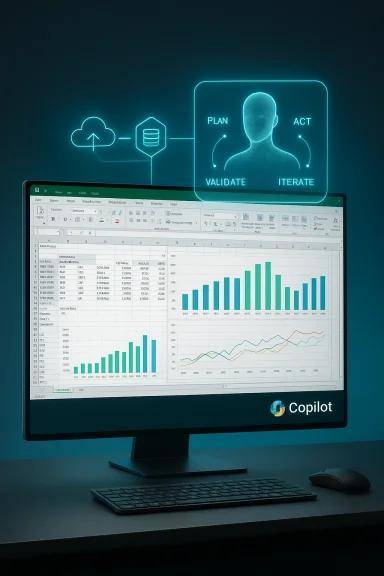 Getting Started with Copilot in Excel
Understanding is one thing — actually getting Copilot running is another. Module 2 is where the practical work begins. Many learners underestimate how much of their success depends on setup: the right Microsoft 365 licence, the correct Excel build, and a working understanding of the Copilot interface before they try to do anything sophisticated with it.
The module walks through system requirements in detail. Copilot in Excel requires either a Microsoft 365 Personal or Family subscription with Copilot Pro, or a Microsoft 365 Business subscription that includes Microsoft 365 Copilot. Enterprise users need the Microsoft 365 E3 or E5 plan combined with the Copilot add-on licenses. The course covers all three scenarios clearly, with step-by-step activation walkthroughs for each.
- 2.1Subscription and licence requirements — Personal, Business, and Enterprise tiers explained
- 2.2Enabling Copilot in Excel — where to find it and how to activate the sidebar
- 2.3Interface walkthrough — the Copilot pane, prompt bar, response cards, and action buttons
- 2.4How Copilot reads your spreadsheet — why data structure matters before prompting
- 2.5The art and science of writing effective prompts — specificity, context, and iteration
The prompt-writing lesson alone is worth the price of admission. Most people approach Copilot the same way they approached Google searches in 2004 — vague, keyword-driven, and frustrated when the results are generic. Copilot responds dramatically better to conversational, contextual, outcome-oriented prompts. The difference between “analyze my sales data” and “show me which product categories had declining revenue in Q3 2025 compared to Q2, grouped by region, sorted by the largest drop first” is the difference between a shrug and an executive-ready summary.
Prompt engineering tip
Always begin a Copilot prompt by stating the output format you want. “Give me a table showing…” or “Write a formula that…” or “Summarize in three bullet points…” — leading with the format gives Copilot the structural frame it needs to produce exactly what you are looking for.
Always begin a Copilot prompt by stating the output format you want. “Give me a table showing…” or “Write a formula that…” or “Summarize in three bullet points…” — leading with the format gives Copilot the structural frame it needs to produce exactly what you are looking for.
| Prompt pattern | What it triggers | Example |
|---|---|---|
Show me [X] by [Y] | Grouped analysis or pivot | “Show me revenue by region by month” |
Write a formula to [action] | Formula generation | “Write a formula to calculate 90-day rolling average” |
Highlight rows where [condition] | Conditional formatting | “Highlight rows where margin is below 10%” |
Summarize this data in [N] points | Natural language summary | “Summarize this data in 5 bullet points for my manager” |
Add a column for [calculation] | Calculated column creation | “Add a column for year-over-year growth percentage” |
Module 3
Excel Fundamentals Refresher
Copilot is an amplifier, not a replacement. The professionals who get the most extraordinary results from AI-assisted Excel are those who already have a solid foundation in how Excel works. This module exists to ensure every learner — regardless of experience level — is operating from the same baseline before the AI-heavy modules begin.
Do not skip this section even if you consider yourself an experienced Excel user. The module covers not just the mechanics of Excel but the mental models behind it — why certain data structures produce better Copilot outputs, how Excel’s internal logic handles different data types, and which formatting habits will actively improve your AI interactions versus which ones will silently undermine them.
- 3.1Excel interface navigation — ribbons, the Name Box, sheet tabs, and quick access toolbar
- 3.2Data types explained — numbers, dates, text, logical, and why mixing them causes problems
- 3.3Essential formulas refresher — SUM, AVERAGE, IF, COUNTIF, VLOOKUP, IFERROR, TEXT
- 3.4Tables versus ranges — why converting to a structured Table unlocks superior Copilot results
- 3.5Data cleaning fundamentals — trimming whitespace, standardising formats, handling blank cells
The Tables lesson deserves special emphasis. When your data lives in a formatted Excel Table — created with Ctrl+T — Copilot has access to rich structural metadata: column names, data types, and the relationships between them. When your data exists as a plain range with no table structure, Copilot has to work harder to interpret what it is looking at, and the results are noticeably less precise. This single habit change — always converting raw data to a Table before prompting — dramatically improves output quality across every subsequent module.
Golden rule
Press Ctrl+T before you prompt. Converting your data range to a structured Excel Table is the single highest-leverage preparation step for working with Copilot. It takes three seconds and makes every subsequent AI interaction noticeably more accurate.
Press Ctrl+T before you prompt. Converting your data range to a structured Excel Table is the single highest-leverage preparation step for working with Copilot. It takes three seconds and makes every subsequent AI interaction noticeably more accurate.
Module 4
Using Copilot for Data Entry & Cleaning
Ask any data analyst what consumes the most frustrating hours of their week, and the answer is almost universally the same: cleaning data. Inconsistent date formats, names entered with varying capitalisation, cells with trailing spaces that break lookups, duplicated rows that silently inflate totals, merged cells that destroy table structure — data cleaning is the invisible tax that every spreadsheet professional pays, every single day. Module 4 teaches you how to stop paying it.
Copilot’s data cleaning capabilities are remarkable not because they are magic, but because they are fast and conversational. You no longer need to recall whether it is TRIM or CLEAN that removes non-printable characters, or whether you should use PROPER or a Find & Replace to fix capitalisation. You simply describe what is wrong and Copilot either fixes it directly or generates the formula that will. The module covers every major data cleaning scenario you will encounter in real work.
- 4.1Auto-generating sample datasets — ask Copilot to create realistic test data for any scenario
- 4.2Fixing inconsistent spellings, mixed cases, and rogue formats with conversational prompts
- 4.3Identifying and removing duplicates — using Copilot to spot, flag, and eliminate redundant rows
- 4.4Batch-formatting large datasets — apply consistent number, date, and currency formats instantly
- 4.5Text-to-table conversions — paste unstructured text data and let Copilot impose structure
The text-to-table capability is particularly impressive for anyone who regularly receives data in non-standard formats — exported PDFs, pasted email content, or legacy system outputs. You can paste a block of seemingly unstructured text into Excel, describe the columns you expect, and Copilot will parse and structure the information accordingly. It is not perfect in every scenario, but it is fast enough and accurate enough to eliminate hours of manual reformatting per week.
Always verify AI-cleaned data
Copilot can misinterpret ambiguous values — a date formatted as “01/02/25” could be January 2nd or February 1st depending on regional settings. Always spot-check at least 10–15% of rows after an AI cleaning operation before treating the output as production-ready data.
Copilot can misinterpret ambiguous values — a date formatted as “01/02/25” could be January 2nd or February 1st depending on regional settings. Always spot-check at least 10–15% of rows after an AI cleaning operation before treating the output as production-ready data.

Module 5
AI-Powered Data Analysis
This is the module most people enrol in the course for. The ability to interrogate a dataset using plain English — without needing to know which formula to use, how to structure a query, or how to build a pivot table from scratch — represents a genuine paradigm shift in how analysis gets done. Module 5 is where that capability becomes a reliable, repeatable skill rather than an occasional party trick.
The module opens by teaching you how to think about your data as a conversational partner. Instead of asking yourself “which Excel function do I need?”, you learn to ask “what do I want to know?” — and then translate that question directly into a Copilot prompt. The AI handles the function selection, the formula construction, and the output formatting. Your job is to ask the right questions clearly and evaluate the answers critically.
- 5.1Natural language querying — how to ask analytical questions about any structured dataset
- 5.2Generating automatic summaries — let Copilot write the executive summary of your data
- 5.3Trend analysis — identifying patterns, seasonality, and anomalies with AI assistance
- 5.4Forecasting basics — using Copilot alongside Excel’s FORECAST.ETS function
- 5.5Creating calculated columns — describe the logic and let Copilot write the formula
The forecasting lesson is one of the most practical in the entire course. Excel has had powerful built-in forecasting functions for several versions — FORECAST.ETS handles seasonality, trend, and confidence intervals automatically. But most users never touched them because the syntax was intimidating and the configuration options were opaque. Copilot removes every barrier: you describe what you want to forecast, over what time horizon, and the AI generates both the formula and a visualization of the projected values. In minutes, you have a forecast that previously would have required either significant Excel expertise or a dedicated analyst.
Advanced combination tip
Pair Copilot with Python in Excel — now generally available in Microsoft 365 — to access pandas, scikit-learn, and matplotlib directly from a cell. Copilot can write the Python code for you, and the results embed directly in your workbook. Statistical analysis that previously required a data science team is now within reach of any analyst.
Pair Copilot with Python in Excel — now generally available in Microsoft 365 — to access pandas, scikit-learn, and matplotlib directly from a cell. Copilot can write the Python code for you, and the results embed directly in your workbook. Statistical analysis that previously required a data science team is now within reach of any analyst.
Module 6
Charts, Dashboards & Visualization
Insight without communication is just noise. You can have the most sophisticated analysis in the world buried in cells, but if the decision-maker in the room cannot see the story in thirty seconds, the analysis fails its purpose. Module 6 teaches you to build visuals and dashboards that communicate clearly, quickly, and beautifully — with Copilot handling the technical mechanics so you can focus on the storytelling.
Copilot’s chart generation is conversational and context-aware. You can describe the chart you want in plain language — “create a waterfall chart showing revenue build-up from January to December with a grand total” — and the AI selects the appropriate chart type, maps the correct data fields, applies sensible labels and colours, and inserts the result into your workbook. For standard chart types, this is faster and more accurate than using the Insert Chart wizard manually.
- 6.1Creating charts with Copilot prompts — describe the chart you need in plain English
- 6.2Choosing the right chart type — when to use bar, line, scatter, waterfall, pie, and combo charts
- 6.3Building interactive dashboards — slicers, dropdowns, dynamic named ranges, and linked charts
- 6.4Data storytelling principles — how to arrange visuals to guide a viewer’s attention deliberately
- 6.5Customising charts with AI suggestions — colours, axis scales, labels, trendlines, and annotations
The data storytelling section of this module goes beyond the technical and into the strategic. Effective dashboards are not collections of charts — they are arguments built from evidence. The module teaches you how to arrange visuals with intention: what the eye sees first, how colour communicates urgency or calm, when to use text annotations instead of chart titles, and how to design a dashboard layout that a CFO or marketing director can parse in under a minute. These skills are as valuable as any formula.
Design principle
When presenting to an executive audience, prompt Copilot to “simplify this chart for a non-technical stakeholder.” It will strip out grid lines, reduce data labels to only the most important values, and rework the title to lead with the insight rather than the description. This one prompt refinement makes an enormous difference to how your work lands in a meeting.
When presenting to an executive audience, prompt Copilot to “simplify this chart for a non-technical stakeholder.” It will strip out grid lines, reduce data labels to only the most important values, and rework the title to lead with the insight rather than the description. This one prompt refinement makes an enormous difference to how your work lands in a meeting.
Module 7
Automating Tasks with AI
If Module 5 is where analysis becomes effortless, Module 7 is where time gets reclaimed permanently. Automation is the compounding interest of productivity — the effort you invest once keeps paying dividends every week thereafter. This module teaches you to build systems inside and around Excel that run themselves, with Copilot as the engine that writes the automation logic.
The automation coverage in this course is genuinely comprehensive. It starts with the basics — using Copilot to generate macros for tasks you currently do manually — and progresses to integrating Excel with Power Automate to create multi-step workflows that cross application boundaries entirely. By the end of this module, you will have the foundations to build an automated reporting pipeline that pulls data, processes it, summarises it with AI, and distributes it to your team — all without a single manual step.
- 7.1Identifying automation opportunities — the weekly task audit that finds your biggest time sinks
- 7.2Generating Excel formulas from English descriptions — never recall syntax again
- 7.3Creating macros with AI assistance — VBA generation via Copilot and Office Scripts for the web
- 7.4Power Automate integration — connecting Excel to email, Teams, SharePoint, and external APIs
- 7.5Time-saving combinations — keyboard shortcuts + Copilot prompts + named ranges = maximum velocity
The Power Automate integration section opens up a particularly powerful workflow class. Consider a scenario where your sales CRM exports data daily to a SharePoint folder. A Power Automate flow detects the new file, opens it in Excel, triggers a Copilot analysis, pastes the summary into a Teams channel, and emails a formatted PDF to your manager — all before you arrive at your desk. This is not science fiction; it is a workflow any professional can build with the skills from this module and a Microsoft 365 subscription.
Automation quick win
Start small. Identify one task you do manually every Monday — formatting a weekly report, pulling numbers from three sheets into a summary, sending a performance email. Automate that single task this week. Once it runs itself, the time and motivation to automate the next task follows naturally.
Start small. Identify one task you do manually every Monday — formatting a weekly report, pulling numbers from three sheets into a summary, sending a performance email. Automate that single task this week. Once it runs itself, the time and motivation to automate the next task follows naturally.
Module 8
Advanced Excel + AI Features
Module 8 is where this course separates itself from the hundreds of basic Excel courses that flood every learning platform. This is the material that transforms competent users into genuine power users — the formulas and features that most professionals know exist but have never felt confident using. With Copilot alongside you, that barrier dissolves entirely.
PivotTables are arguably the most powerful reporting tool in Excel, and also the most misunderstood. The traditional workflow — dragging fields into row, column, and value wells while trying to remember which field goes where — intimidates beginners and frustrates experienced users who just want the output quickly. Copilot changes this completely. You describe the pivot table you want in a sentence, and it builds the structure, applies the aggregation functions, and formats the output. You focus on the question; the AI handles the mechanics.
- 8.1PivotTables with Copilot — build complex pivots by describing the breakdown you need
- 8.2Modern lookup functions — XLOOKUP, INDEX-MATCH, and when to use each
- 8.3Dynamic array formulas — FILTER, SORT, UNIQUE, SEQUENCE, and STOCKHISTORY
- 8.4AI-assisted conditional formatting — highlight exceptions, outliers, and thresholds automatically
- 8.5Working with large datasets — performance optimisation and Copilot’s handling of 100k+ rows
Formula upgrade: XLOOKUP replaces VLOOKUP
XLOOKUP searches left and right, returns multiple columns, handles errors gracefully, and requires no column index numbers. If you still use VLOOKUP out of habit, Copilot will write the equivalent XLOOKUP for you automatically — just ask “rewrite this VLOOKUP as an XLOOKUP.” Run this prompt on any legacy workbook and modernise it in minutes.
XLOOKUP searches left and right, returns multiple columns, handles errors gracefully, and requires no column index numbers. If you still use VLOOKUP out of habit, Copilot will write the equivalent XLOOKUP for you automatically — just ask “rewrite this VLOOKUP as an XLOOKUP.” Run this prompt on any legacy workbook and modernise it in minutes.
Module 9
Business Use Cases
All technical skill must eventually serve a real-world purpose. Module 9 bridges the gap between knowing how to use Copilot and knowing how to use it in the specific context of your actual job. The module presents five distinct industry scenarios — each one realistic, each one built on the tools and techniques from the preceding modules — and walks you through building AI-enhanced solutions for each.
For sales professionals, the module shows how to build a fully automated territory performance report that compares actual revenue against target, identifies the top five deals in the pipeline, flags accounts that have gone cold, and generates a plain-English narrative summary — all triggered by a single Copilot prompt on a Monday morning. For marketing teams, it demonstrates how to combine multi-channel campaign data from different sources, analyse cost-per-lead by channel and creative variant, and surface the highest-ROI combinations automatically.
- 9.1Sales reports automation — territory analysis, pipeline summaries, and win-rate dashboards
- 9.2Marketing campaign analysis — CTR, ROAS, CPL, and cohort performance across channels
- 9.3Financial modelling — P&L summaries, cash flow projections, and scenario planning with AI
- 9.4HR dashboards — headcount tracking, attrition analysis, and compensation benchmarking
- 9.5Inventory management — ABC analysis, reorder point calculations, and stock-out risk alerts
The financial modelling section deserves particular attention for anyone in a finance-adjacent role. Building a scenario model that shows how a business performs under three different revenue assumptions — base case, optimistic, and pessimistic — used to require significant financial modelling expertise. Copilot can scaffold the structure, write the linking formulas between sheets, apply the scenario inputs via data tables, and generate the summary narrative — reducing the time from concept to finished model from days to hours.
Portfolio strategy
Build each of these five use-case files as portfolio pieces and publish them on LinkedIn or include them in a personal website. Recruiters across finance, operations, and marketing actively look for candidates who can demonstrate working knowledge of AI-enhanced Excel — not just candidates who claim it on a resume.
Build each of these five use-case files as portfolio pieces and publish them on LinkedIn or include them in a personal website. Recruiters across finance, operations, and marketing actively look for candidates who can demonstrate working knowledge of AI-enhanced Excel — not just candidates who claim it on a resume.
Module 10
Data Security & Best Practices
Speed and capability without responsibility is a liability. As AI becomes embedded in every workflow, the professionals who thrive long-term will be those who use it with both skill and judgment. Module 10 is the conscience of this course — and it is not optional reading.
The module opens with a clear-eyed explanation of what happens to the data you share with Copilot. Microsoft’s enterprise agreements include strong data protection provisions: in Microsoft 365 Copilot, your prompts and data are not used to train the underlying language models, and Microsoft does not access your content for advertising purposes. However, the specific protections vary depending on your subscription tier and your organisation’s data governance settings — and understanding those differences is essential before you start pasting sensitive business data into a Copilot prompt.
- 10.1Data privacy essentials — what Copilot can see, what it stores, and who can access it
- 10.2Common AI errors in Excel — formula hallucinations, wrong aggregations, and silent mistakes
- 10.3Verification frameworks — systematic methods for checking AI-generated outputs before using them
- 10.4Ethical use of AI in Excel — transparency, accountability, and the human-in-the-loop principle
Critical privacy rule
Never paste personally identifiable information (PII), confidential salary data, customer financial records, or unreleased business strategy into a Copilot prompt unless your organisation has an enterprise Copilot licence with verified data protection provisions confirmed by your IT or compliance team. When in doubt, anonymise the data first.
Never paste personally identifiable information (PII), confidential salary data, customer financial records, or unreleased business strategy into a Copilot prompt unless your organisation has an enterprise Copilot licence with verified data protection provisions confirmed by your IT or compliance team. When in doubt, anonymise the data first.
Module 11
Hands-On Projects
Reading about skills and building them are two fundamentally different activities. Module 11 is where the learning crystallises into tangible, portfolio-ready outputs. The four projects are not toy exercises — they are realistic, professional deliverables that mirror the kind of work actual businesses need.
Each project is designed so that you can use your own data if you have it, or work with the realistic sample datasets provided in the course. The goal is not to produce a correct answer — it is to produce a finished, professional artifact that you would be comfortable sharing with a colleague, a client, or a prospective employer. Copilot is your collaborator throughout; you direct the AI, evaluate its outputs, iterate on the design, and take ownership of the final result.
Project 01
Sales Dashboard
Build a fully interactive sales performance dashboard showing revenue by region, target vs actual, deal stage breakdown, and month-over-month trend — all generated and connected using Copilot prompts with slicers for dynamic filtering.
Finance · Visualization · Automation
Project 02
Marketing Performance Tracker
Combine campaign data from multiple channels into a unified performance tracker. Use Copilot to calculate ROAS, CPL, and CTR automatically, and surface the top three and bottom three performers with explanatory summaries.
Marketing · Analytics · Copilot
Project 03
Expense Analyzer
Import raw expense records, clean them using Copilot, categorise spend automatically using AI-suggested classification formulas, and produce a monthly management summary with department-level breakdowns and over-budget alerts.
Finance · Data Cleaning · Reporting
Project 04
Automated Report Generator
Design a one-click reporting system using Office Scripts and Power Automate that takes a raw data input file, processes it through a series of Copilot-assisted transformations, and outputs a formatted, branded PDF report on a weekly schedule.
Automation · Power Automate · Scripts
Module 12
Career & Productivity Boost
Skills without strategy stay invisible. The final module of the core course exists to ensure that everything you have learned translates into measurable professional impact — whether that means getting hired, getting promoted, taking on higher-value projects, or simply doing your current job more effectively and with less effort.
The module begins with an honest assessment of where AI-enhanced Excel skills sit in today’s job market. The data is striking: searches for “Microsoft Copilot” and “Excel AI” as job requirements grew by over 300% on LinkedIn between 2024 and 2026. The roles that prize these skills are not just data analyst positions — they span finance managers, marketing operations leads, HR business partners, operations coordinators, and virtually any role where data processing is part of the job description. Which is to say, most roles.
- 12.1Mapping your new skills to job market demand — which roles, which industries, which salaries
- 12.2Resume and portfolio positioning — how to show AI-enhanced Excel work compellingly
- 12.3Interview preparation — how to answer “Tell me how you use AI in your workflow” confidently
- 12.4Daily productivity system — a morning Copilot routine that saves 60–90 minutes every day
The portfolio section is particularly actionable. The module teaches you how to document your project work in a way that is legible to non-technical hiring managers — annotated screenshots, brief case-study narratives, and quantified impact statements (“reduced weekly reporting time from 4 hours to 35 minutes”). This kind of evidence-based portfolio is far more persuasive than a skills list, and it is something most candidates simply do not bother to build.
LinkedIn signal that works
Add “Microsoft 365 Copilot” and “AI-powered data analysis” to your LinkedIn Skills section, then publish a short post showing one Copilot output from your project work with a brief explanation of how it was built. This single post consistently generates recruiter inbounds from professionals who know what they are looking at.
Add “Microsoft 365 Copilot” and “AI-powered data analysis” to your LinkedIn Skills section, then publish a short post showing one Copilot output from your project work with a brief explanation of how it was built. This single post consistently generates recruiter inbounds from professionals who know what they are looking at.
Microsoft 365 Fundamentals certification
LinkedIn Learning — Copilot courses
Coursera — Excel & Copilot courses
LinkedIn Learning — Copilot courses
Coursera — Excel & Copilot courses
Bonus
Prompt Templates, Cheat Sheets & the Future of AI in Excel
The bonus section is designed to be the reference material you return to daily — not once and forgotten, but bookmarked and used constantly as your practice deepens. It contains three components: a curated library of prompt templates for the most common Excel Copilot scenarios, a combined formula and AI prompt cheat sheet, and a forward-looking analysis of where AI in Excel is heading next.
Prompt Template Library
| Scenario | Copilot prompt |
|---|---|
| Generate a formula | Write a formula to calculate the 12-month rolling average of column C |
| Conditional formatting | Highlight all rows where the value in column E is more than 20% below the average |
| Data summary | Summarise this table in 5 bullet points for a non-technical manager |
| PivotTable creation | Create a pivot table showing total sales by product category and region for Q1 |
| Clean data | Standardise all entries in the Country column to title case and fix common abbreviations |
| Trend analysis | Show me which months had the three largest month-over-month drops in revenue |
| Forecast | Forecast the next 6 months of sales based on the data in columns A and B |
| Macro request | Write an Office Script that formats column headers as bold, dark blue background, and white text |
| Chart creation | Create a combo chart showing monthly revenue as bars and cumulative total as a line |
| Outlier detection | Identify any rows where the value in column D is more than 2 standard deviations from the mean |
The Future of AI in Excel
The roadmap Microsoft has communicated — and the trajectory of Copilot improvements already visible in 2025 and 2026 — points toward several major capability expansions arriving in the near term. Multi-sheet reasoning is already in beta: Copilot will be able to draw on data from multiple worksheets and workbooks simultaneously, making cross-file analysis as simple as cross-table analysis is today. Natural language data connections are in development, which will allow users to say “connect to our Salesforce data” and have Copilot build the Power Query connection, map the fields, and refresh the data automatically.
Longer term, real-time collaborative AI — where Copilot participates in a shared workbook like a third collaborator, surfacing insights as colleagues edit data — will change the nature of collaborative analysis permanently. The skills you build in this course will remain relevant and compound in value as each of these capabilities arrives. The fundamentals of clear prompting, structured data, and critical evaluation of AI outputs will matter more, not less, as the technology becomes more capable.
What’s coming in 2026 and beyond
Multi-workbook reasoning, natural language database connections, real-time collaborative AI, deeper Python in Excel integration, and Copilot Studio custom agents for domain-specific Excel workflows. Getting fluent in Copilot now means you adopt each new capability as an upgrade rather than a learning curve.
Conclusion
The AI-Powered Excel with Copilot course is not about keeping up with technology for its own sake. It is about making the hours you spend working with data genuinely productive — productive in the sense that your output quality increases, your analysis depth improves, and the cognitive load of routine mechanical tasks shrinks dramatically. What you do with the time that Copilot returns to you is entirely up to you: deeper thinking, more creative work, better stakeholder relationships, or simply a less exhausting workday.
The professionals who will look back on 2026 as a turning point in their careers will be the ones who engaged seriously with AI tools — not as passive consumers who let the technology happen to them, but as active directors who learned to command it with precision and judgment. This course gives you the foundation. The rest is practice.
“Excel has always been powerful. Copilot makes it personal. The formulas no longer care whether you know them — only whether you know what you want.”
Start your Copilot + Excel journey today
Microsoft Learn offers free foundational Copilot training. LinkedIn Learning and Coursera have structured paid courses with certificates. The most important step is the first prompt you write in a real workbook with real data.
Microsoft Copilot
Excel
AI tools
Data analysis
Microsoft 365
Power Automate
Productivity
Career skills
Financial modelling
Dashboards
PivotTables
XLOOKUP
Dynamic arrays
Office Scripts
Data storytelling
Excel
AI tools
Data analysis
Microsoft 365
Power Automate
Productivity
Career skills
Financial modelling
Dashboards
PivotTables
XLOOKUP
Dynamic arrays
Office Scripts
Data storytelling
Courses available:
Our Most Popular Courses
🔹 Data Science Course
🔹 Data Analytics Course
🔹 Artificial Intelligence Course
🔹 Machine Learning Course
🔹 Python Programming
🔹 Generative AI Course
🔹 Digital Marketing Course
🔹 Software Testing Course
Talk to a career advisor today and find the best course to get job quickly in Bangalore for your specific goals
The next batch starts soon. Your ₹8–12 LPA first job in Bangalore is six to nine months away. The roadmap is in front of you. Take the first step today.
📍 3rd Floor, 137 Valmiki Main Rd, Kalyan Nagar, Bangalore 560043
📞 +91 9902461116
✉️ enquiry@cambridgeinfotech.io
✅ 6–9 month job-ready track | Live projects | Small batches | Industry trainers | 100% placement assistance | EMI available